How to Set Up Shopify Reports to Track Contribution Margin by Product Line

Most Shopify store owners can tell you their total revenue. Fewer can tell you which product lines are actually profitable after accounting for all the costs that sit between the sale price and the bottom line. Contribution margin reporting by product line fixes that gap — and setting it up properly in Shopify is more achievable than most operators realise.
This article walks through exactly how to structure your Shopify reports to surface contribution margin at the product line level, what data you need to pull together, and how to interpret the numbers to make better decisions about inventory, pricing and channel mix.
Why Contribution Margin Matters More Than Revenue or Gross Profit
Revenue tells you how much customers paid. Gross profit tells you what was left after the cost of goods sold. Contribution margin goes one step further — it shows how much each product line contributes to covering your fixed overheads after deducting all variable costs directly attributable to that line.
The contribution margin formula is straightforward:
| Selling Price (net of returns and discounts) | $85.00 |
| Less: Cost of Goods Sold (COGS) | − $32.00 |
| Less: Payment Processing Fees (e.g. 1.5–2%) | − $1.70 |
| Less: Shipping & Fulfilment Cost | − $8.00 |
| Less: Variable Packaging Cost | − $1.50 |
| Less: Channel Commission (if applicable) | − $0.00 |
| Contribution Margin per Unit | $41.80 |
Expressed as a percentage, this unit contribution margin of $41.80 on a $85.00 selling price gives a contribution margin ratio of approximately 49%. That is the number you want to track by product line — not just for your Shopify store, but across every sales channel the product appears on.
Contribution margin ratio is calculated as: (Revenue − Variable Costs) ÷ Revenue × 100. A higher ratio means more of each sales dollar is available to cover fixed costs and generate profit. Tracking this by product line reveals which lines are carrying the business and which are draining it.
The Shopify Reports You Need to Set Up
Shopify’s native reporting gives you a solid foundation to analyse store performance. The key reports to build your contribution margin view from are:
- Sales by Product — shows revenue, quantity sold, returns and net sales per SKU or product
- Sales by Product Vendor — useful for grouping by supplier or brand
- Sales by Traffic Referrer — helps attribute revenue to marketing channels
- Finance Summary — captures gross sales, discounts, refunds and net sales
- Custom Reports or Data Explorations — lets you filter and segment data by product, collection or sales channel
Start with the ‘Sales by Product’ report under Analytics → Reports → Sales. Export this to a spreadsheet at whatever cadence you review performance — weekly or monthly depending on your volume.

Organising Your Product Lines for Meaningful Reporting
The most important structural decision is how you group products into ‘lines.’ In Shopify, you can use Collections, Product Type, Tags or Vendor to create logical groupings. For contribution margin reporting, the grouping should reflect how you think about the business — for example: Skincare, Supplements, Accessories — rather than purely how products are listed.
If you sell a moisturiser, a toner and a face wash, treating these as one ‘Skincare’ product line allows you to see the blended contribution margin across the range and make decisions about whether that category deserves more inventory investment or marketing spend.
A practical approach is to use the ‘Product Type’ field in Shopify consistently across all SKUs and then filter your sales export by this field when building your margin calculations in a spreadsheet or analytics tool.
Shopify’s native reports do not automatically incorporate COGS unless you manually enter cost per item in each product variant record. If cost data is missing or inconsistent, your margin calculations will be wrong. Audit your product catalogue for missing cost fields before building any margin report.
Building a Contribution Margin Table by Product Line
Once you have clean sales data exported from Shopify and your cost data populated, structure your margin analysis in a table format like the one below. This example uses three product lines across a single Shopify store:
| Product Line | Net Revenue | COGS | Gross Profit | Variable Costs | Contribution Margin | CM Ratio |
|---|---|---|---|---|---|---|
| Skincare | $42,000 | $14,700 | $27,300 | $6,300 | $21,000 | 50% |
| Supplements | $28,500 | $11,970 | $16,530 | $5,130 | $11,400 | 40% |
| Accessories | $9,800 | $2,940 | $6,860 | $3,430 | $3,430 | 35% |
| Total | $80,300 | $29,610 | $50,690 | $14,860 | $35,830 | 45% |
Variable costs in this example include payment processing fees, outbound shipping, packaging and any per-order fulfilment charges. These should be estimated as a percentage of revenue or as a fixed per-unit cost depending on your fulfilment model.
The table immediately shows that Skincare is the highest-margin product line at 50%, while Accessories — despite appearing profitable at gross margin level — has the lowest contribution margin ratio once variable costs are factored in. That insight should influence how you allocate ad spend and inventory capital.
Adding Channel Data to the Contribution Margin View
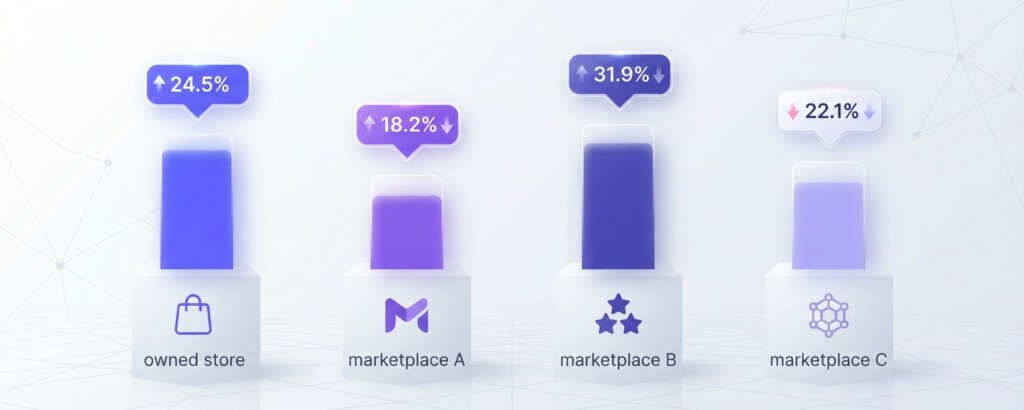
If you sell the same product on Shopify, Shopee, Lazada or TikTok Shop simultaneously, the contribution margin for that product will differ by channel. Each channel imposes its own commission structure, and some channels require channel-specific promotions or price matching that erodes margin further.
A product selling at $85.00 on your Shopify store might be listed at the same price on Lazada, but Lazada typically charges a commission in the range of 1–5% depending on category, while TikTok Shop commissions can be higher, particularly when seller-funded vouchers are included. On Shopee, flash sale participation reduces the effective selling price further.
| Channel | Net Selling Price | COGS | Commission & Fees | Shipping Cost | Contribution Margin | CM Ratio |
|---|---|---|---|---|---|---|
| Shopify | $85.00 | $32.00 | $1.70 | $8.00 | $43.30 | 51% |
| Lazada | $85.00 | $32.00 | $5.95 | $0.00 | $47.05 | 55% |
| Shopee | $80.00 | $32.00 | $4.00 | $0.00 | $44.00 | 55% |
| TikTok Shop | $85.00 | $32.00 | $8.50 | $0.00 | $44.50 | 52% |
Note how Lazada, Shopee and TikTok Shop show higher CM ratios in this example because the marketplace handles fulfilment logistics, removing the shipping cost from the seller. But if you are running your own fulfilment for marketplace orders, add those costs back in — the picture will look quite different.
Using Shopify’s Custom Reports for Ongoing Tracking
Within Shopify Analytics, you can build custom reports or data explorations using the report editor. To track contribution margin trends, create a custom report combining:
- Net sales filtered by Product Type (your product line grouping)
- Units sold per product line for the period
- Average discount applied (to understand price erosion)
- Return rate per product line (high returns destroy margin silently)
- COGS per product line (if costs are entered at variant level, Shopify can surface this)
Export this report at month-end, or use a reporting app or automation tool to schedule exports automatically. Many operators use Google Sheets or Excel to ingest this export alongside their fulfilment cost data (from their 3PL or internal records) and compute the final contribution margin calculation monthly.
For businesses managing multi-channel operations, tools like BrizoMarket can consolidate sales and cost data across Shopify and marketplace channels into a single profitability view — which removes the manual work of combining exports from each platform each month.
Common Errors That Distort Contribution Margin Reporting
Even well-intentioned margin reports go wrong for predictable reasons. Watch for these issues:
- Missing or stale COGS: If you updated supplier prices but did not update the cost field in Shopify, your margin calculations will overstate profitability
- Excluding payment processing fees: These are genuine variable costs and should not be treated as fixed overheads
- Blending channels without separation: Mixing Shopify and marketplace revenue into a single product line figure hides the real margin by channel
- Ignoring promotional discounts: If a product was on a Shopee flash sale for part of the month, the average selling price is lower than your standard price — use net revenue not gross revenue
- Treating return shipping as zero: Returns have a fulfilment cost that reduces the effective contribution margin of returned orders
Interpreting the Numbers and Taking Action
Once your contribution margin report is running, the goal is to use it for decisions — not just measurement. A few practical applications:
If a product line has a CM ratio below 30%, scrutinise whether it is genuinely covering its share of fixed overhead. A product that looks profitable at gross margin level but has a thin contribution margin may not be worth the operational complexity it adds.
If one channel consistently shows a lower CM ratio for the same product line, consider whether the channel’s volume justifies the lower margin, or whether pricing needs to be adjusted. Some operators price up on marketplaces to compensate for higher commission rates while maintaining the same net contribution margin.
Use contribution margin by product line to prioritise which lines get advertising budget. A product line with a 55% CM ratio can support a higher cost-per-acquisition than one at 35% before it goes margin-negative. That is a direct input to your ROAS targets — if your CM ratio is 40%, you need a ROAS of 2.5x just to break even on ad spend at zero fixed cost allocation.
Quick ROAS floor calculation: Divide 1 by your contribution margin ratio to get the minimum ROAS needed to cover variable costs. A 40% CM ratio means your minimum ROAS is 1 ÷ 0.40 = 2.5x. Below that threshold, each advertising dollar costs you contribution margin rather than generating it.
Practical Next Steps
To get this set up in your business, work through these steps in order:
- Audit your Shopify product catalogue — ensure every variant has an accurate cost per item entered
- Decide on your product line groupings using Product Type or Tags and apply them consistently
- Export the Sales by Product report for the last three months and calculate gross margin per line
- Layer in variable costs (payment fees, shipping, packaging) from your records or estimates
- If you sell on marketplaces, calculate channel-specific contribution margin for your top 10 SKUs
- Build a monthly reporting template in a spreadsheet that pulls these figures together
- Set a monthly review cadence to identify lines where CM ratio is declining
Contribution margin reporting is not a one-time exercise. Supplier costs change, channel commissions shift, return rates move with the season. The businesses that manage profitability well are those that review these numbers regularly and adjust pricing, channel mix and product range accordingly.
Track Contribution Margin Across Every Channel — Without the Manual Work
BrizoMarket helps e-commerce operators bring together sales, cost and margin data from Shopify, Shopee, Lazada and TikTok Shop into one clear profitability view — so you can stop guessing which product lines and channels are actually working for you.